Lights down. Curtain up.
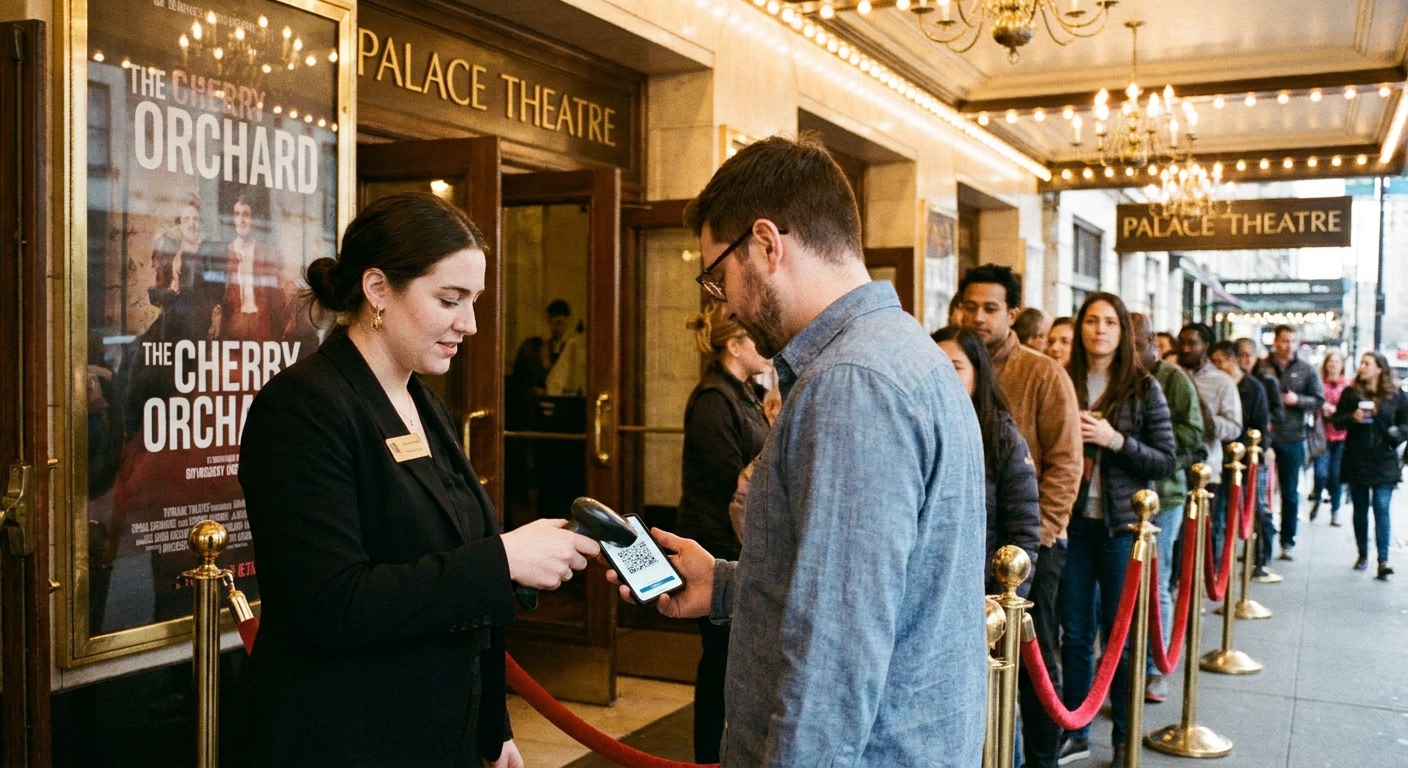
And then, the moment of truth at the door: your phone is dim, your signal is gone, and the usher is giving your screenshot the kind of look usually reserved for crinkled candy wrappers.
So, can a screenshot or a dead phone get you into a show? Sometimes. Often, no. The answer depends on what kind of ticket the venue uses, and whether your ticket is a static barcode or a changing one.
Why screenshots and PDFs get rejected
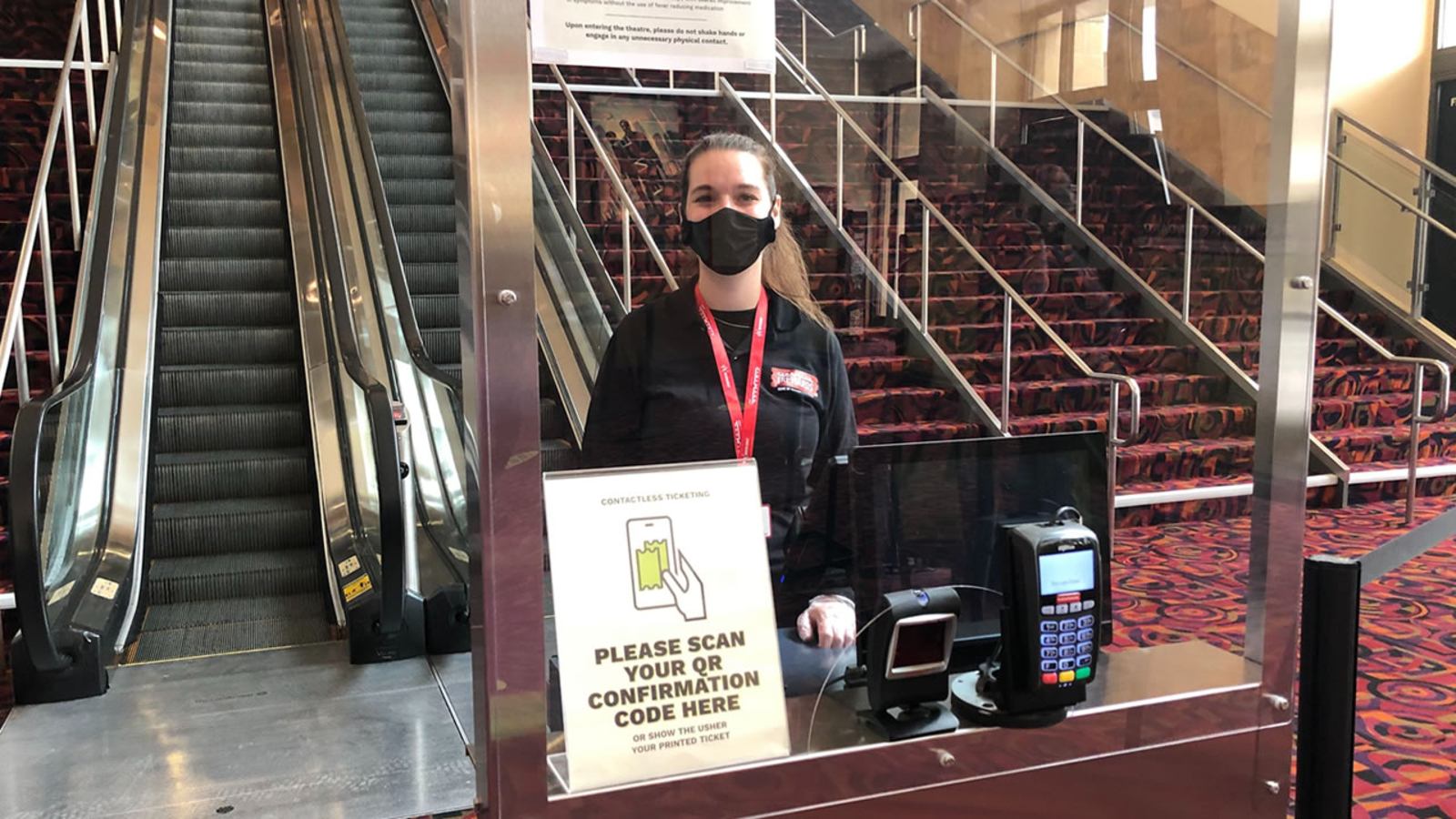
From the venue’s perspective, a ticket at the door is not just a picture. It is a credential that has to be validated in real time. Screenshots and downloaded PDFs can fail that test for a few common reasons.
1) A screenshot can be duplicated instantly
If a ticket is a simple, unchanging barcode or QR code, anyone can screenshot it, forward it, and create multiple copies. The scanner will usually accept the first one through, and reject later attempts as already used. That makes screenshots an easy tool for accidental double use and intentional fraud.
2) Many venues use dynamic barcodes
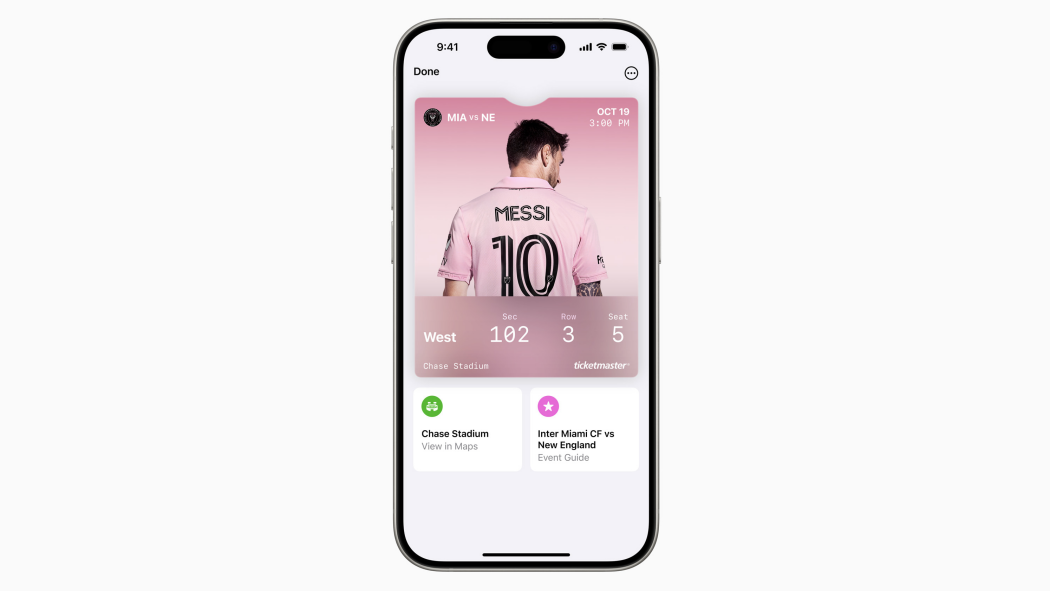
Some major ticketing platforms issue barcodes that refresh inside the official app and sometimes in a wallet pass. A screenshot captures one frozen moment, which can become invalid quickly. If your venue uses this kind of ticket, a screenshot is likely to fail even if you bought the ticket yourself and everything is legitimate.
3) The scanner may need the live ticket format
Even with a static code, scanners and gate systems sometimes expect specific formatting, brightness, or cues used by official tickets. A low-resolution screenshot, a cropped image, a blue-light filter, or a PDF zoomed oddly can all slow things down. In a busy lobby, “slow” can turn into “no.”
4) Some venues default to “no screenshots”
Some houses train staff to reject screenshots as a rule because it is the simplest way to reduce disputes at the door. The goal is consistency: accept tickets from the official app, mobile wallet, or box office, and avoid the blurry gray area.
What dynamic codes change
A rotating barcode, sometimes called a dynamic QR code, is designed to prove that the ticket is being presented from an authorized source right now.
- It discourages resale scams where the same image is sent to multiple buyers.
- It reduces shared-screenshot confusion among friends who all think they have the ticket.
- It can be revoked or updated if there is an issue with the order.
The trade-off is obvious: it is more secure, but it can be less forgiving when your phone is struggling. That is why planning a backup matters.
So will a screenshot work?
It can work if the venue is using a static barcode and the screenshot is clear and uncropped. But it is increasingly unreliable.
If you are deciding what to bring to the door, this is the practical ranking:
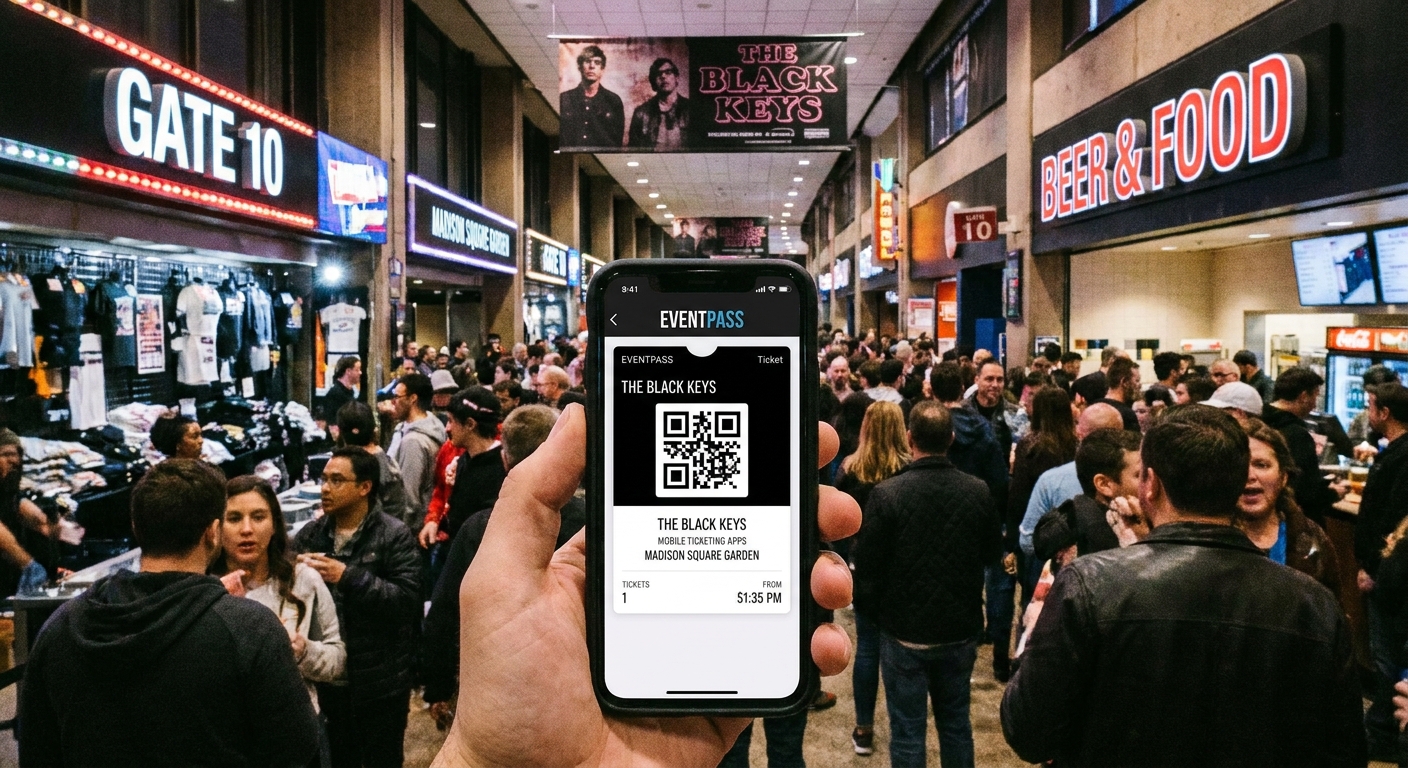
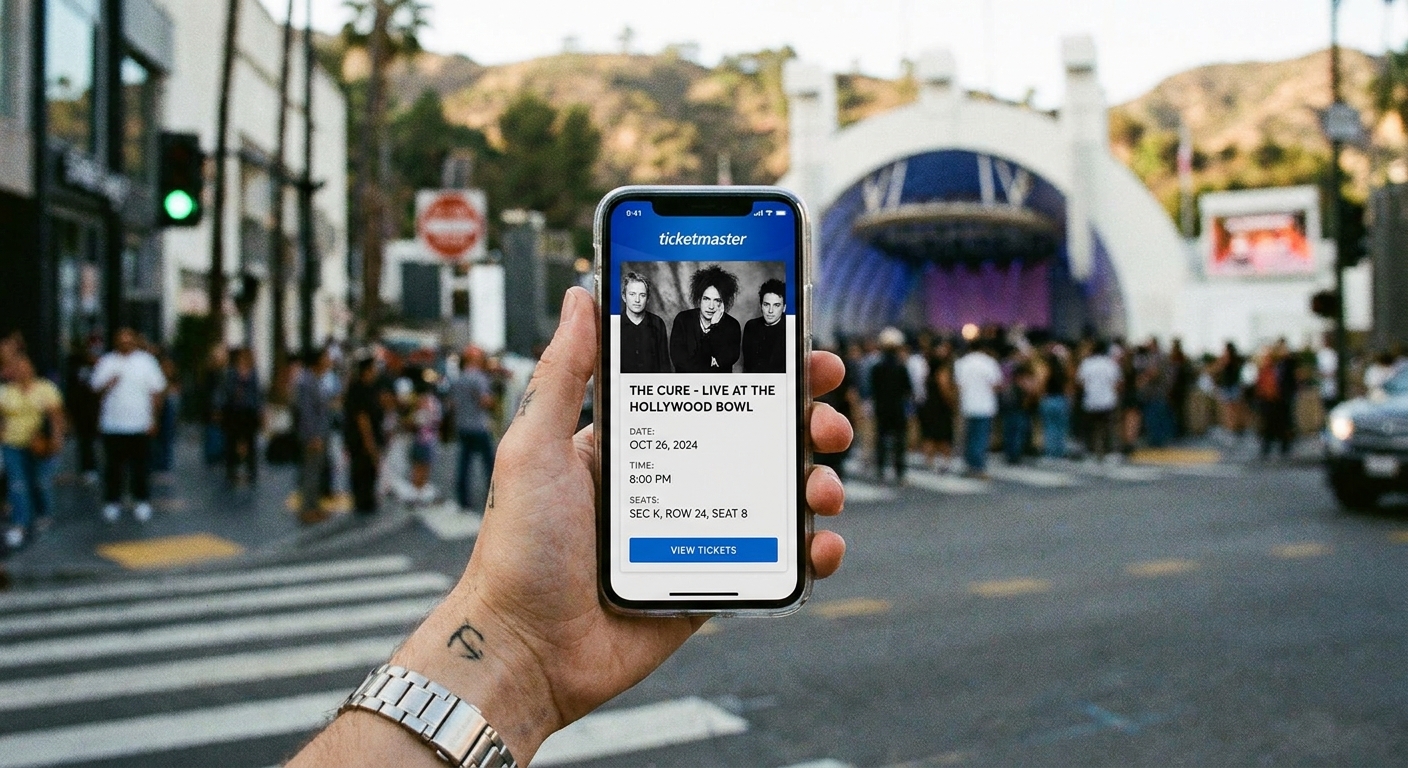
- Best: Ticket inside the official ticketing app or your Apple Wallet or Google Wallet pass.
- Strong backup: A printed ticket that the venue explicitly provided for printing at home. (If the ticket uses a dynamic code, a printout may not be accepted.)
- Good: A downloaded wallet pass that is meant to be used with minimal connectivity. (Usually reliable once saved, but some tickets still require occasional refresh, login, or a code that appears closer to showtime.)
- Risky: A screenshot of a barcode or QR code.
- Usually worst: A PDF you have to pinch-zoom on your phone while your brightness is low and the line is moving.
One small but important distinction: a “PDF ticket” might mean a print-at-home PDF designed for paper. Displaying that same PDF on a phone is a different experience, and often a worse one, because glare, zoom, and dimming get in the way of a clean scan.
If your phone dies at the door
Phones love to pick the worst possible time for a battery collapse. If it happens at the venue, you still have options, and the best one depends on the show, the venue, and the ticket type.
Option A: Will call (name pickup)
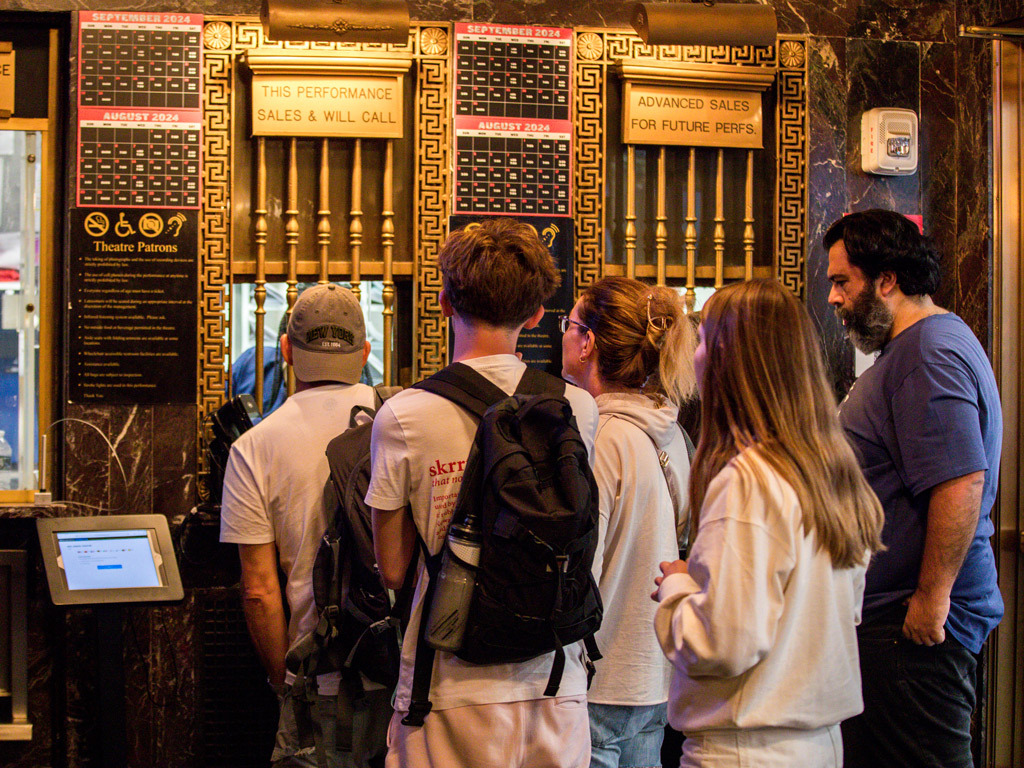
Many theaters and venues can verify your purchase by name and order information at the box office window or will call desk. It is one of the cleanest solutions when your phone is unusable, but policies vary.
If you bought through a third-party marketplace or you are dealing with a non-transferable ticket, will call may be limited to the original purchaser, or not available at all. In those cases, you may need the delivery method and support channel from the seller or platform you used.
Bring what the box office can use to find you quickly:
- A government-issued photo ID that matches the ticket order name
- The card used to purchase, if available (some venues request it)
- Your order number or confirmation email, if you can access it from another device
Option B: Ask about a reprint
If the venue can locate your order, staff can often print a physical ticket or a pickup slip. Policies vary, and some venues charge a reprint fee or restrict reprints for high-demand events.
One important note: if the ticket has already been scanned, the system may show it as used. In that case, the box office has to treat it as a door issue, not a simple reprint.
Option C: Pull it up on a friend’s phone
If you are attending with someone you trust, and your ticketing platform allows you to log in on another device or officially transfer the ticket, you may be able to present it from their phone while you stand at the door.
Be careful here: logging into accounts in public can be messy. If the venue is packed and time is tight, will call is often faster.
Option D: Get a quick charge
Some venues have lobby outlets, charging lockers, or staff who can point you to a power source. A quick charge might get you just enough battery to display the ticket, especially if it is already saved as a wallet pass.
If you revive the phone, turn up brightness, remove anything that causes glare, and consider turning off blue-light filters right before the scan.
Backups before you leave
The smoothest entry is the one you never have to troubleshoot. Before you head out, a few simple steps can save your seat.
- Add the ticket to your mobile wallet if the platform offers it. Wallet passes often load quickly, but some tickets still require a refresh or a code that appears closer to showtime.
- Charge up and bring a power bank if you can. Doors do not pause for 2 percent battery.
- Save key details somewhere easy: venue name, show time, and your order number. If you need will call, those details matter.
- Know where will call is before you arrive. A minute spent wandering outside can become ten in a line.
- Plan for scanning: bump brightness, clean your screen, and be ready to remove a reflective screen protector glare if the scanner is struggling.
This is not the same as transferring
A quick but crucial distinction: getting in with a dead phone is a door and verification problem. Transferring a ticket is an ownership and permissions problem.
If you are trying to send a ticket to someone else, many venues and ticketing platforms expect you to use an official transfer feature so the ticket is reissued in the other person’s name or account. A forwarded screenshot might get rejected, and even if it scans, it can create confusion if the original buyer needs to resolve an issue later.
In other words: backups are for you getting in. Transfers are for someone else getting in.
Quick door checklist
- If you only have a screenshot: expect it might not work, especially for major venues or high-demand shows.
- If your ticket has a rotating barcode: use the official app, and only use a wallet pass if that pass is what the venue and platform intend you to scan.
- If your phone is dying: go to will call or the box office to see if they can verify your order and reissue a ticket.
- If you are giving a ticket to someone else: use the platform’s transfer tools when available.
The goal is simple: less time negotiating with your lock screen, more time finding your seat before the first line lands.